Overview
Shop Manager Analytics gives shops powerful tools to better understand their performance and make informed business decisions. With interactive dashboards, visual graphs, and exportable reports, you can dive deeper into your shop’s data and uncover valuable insights.
This article provides a guided overview of Shop Manager Analytics. You’ll learn how to filter data, navigate and interpret dashboards, and export reports so you can easily share or analyze information outside the platform.
Table of Contents:
- Analytics Page Overview
- Filtering Dashboards
- Using Graphs and Charts
- Understanding KPIs
- Downloading and Exporting
Analytics Page Overview
Upon opening the New Analytics page you'll be taken to the landing screen, also called the Overview.
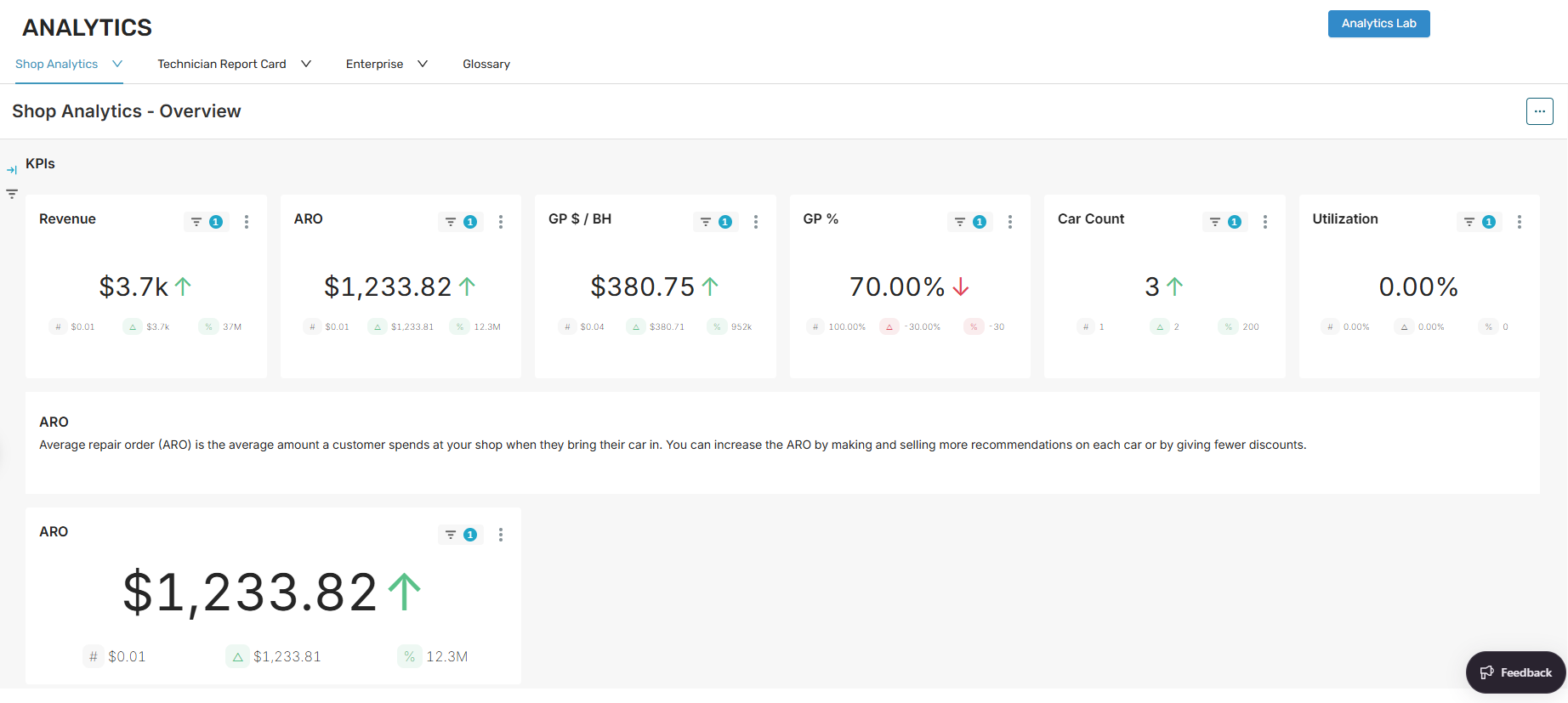
This landing page will show you refreshed KPIs (key performance indicators) tailored to today's shop priorities along with various other useful dashboards. Across the top of the page you'll see different tabs that dropdown to show what dashboards are available in alphabetical order.
Let's review what dashboards are available below (note that we may add new dashboards over time, this list will be updated accordingly).
- Shop Analytics
- Close Metrics by Employee
- Close Metrics by RO
- CRM
- Customers
- Duration of Service
- Finance
- MSO (if you're a multi-shop customer)
- Open Jobs
- Overview
- Overview - Legacy View (mimics the Classics Analytics overview)
- Overview YOY
- Parts
- Services
- Staff
- Vehicle
- Vehicle - Detailed
- Technician Report Card
- Hours in Detail
- Manager View
- Technician View
- Technician View ($)
- Summary Reports
- Accounts Receivable
- Closed Hours
- Closed Sales
- Compensation
- Coupons
- Customer Payments
- Haz/Fees Details
- Inventory Value
- Marketing
- Parts Details
- Parts Purchased
- Payroll
- Sales Tax
- Service Details
- Glossary - shows definitions and formulas used
If you are a member of ATI or ShopFix or have custom made dashboards, you will see additional tabs across the top to reflect these dashboards and their respective reports, like in the example below:

Each of these different dashboard pages will offer the ability to filter and export the data. Let's take a closer look at filtering below.
Filtering Dashboards
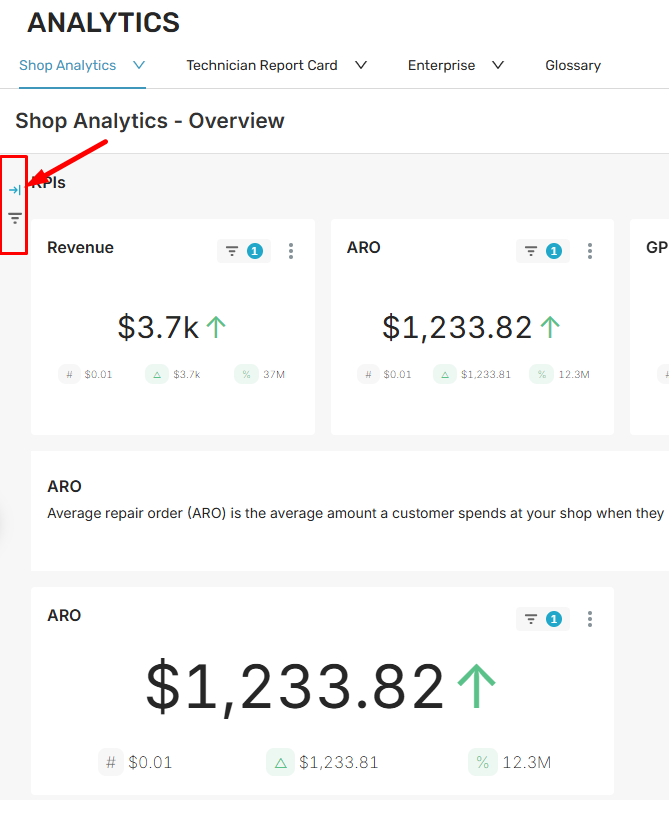
To filter a dashboard, you can click the filter or arrow icon that's located to the left of the dashboard, as highlighted below:
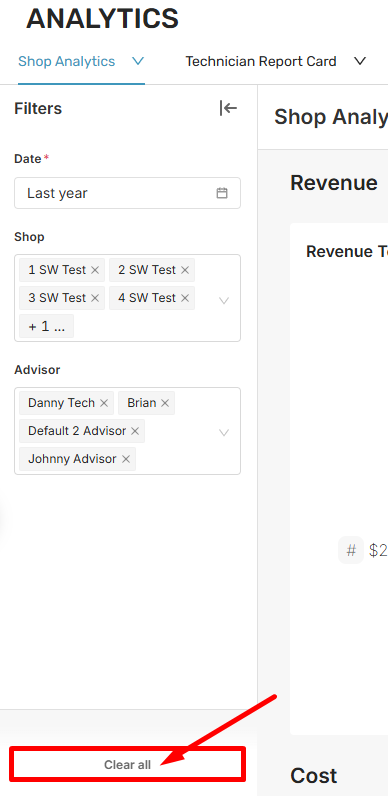
The filter panel will open where you can make your adjustments, then when you are finished you can click on the arrow icon again to close the panel.
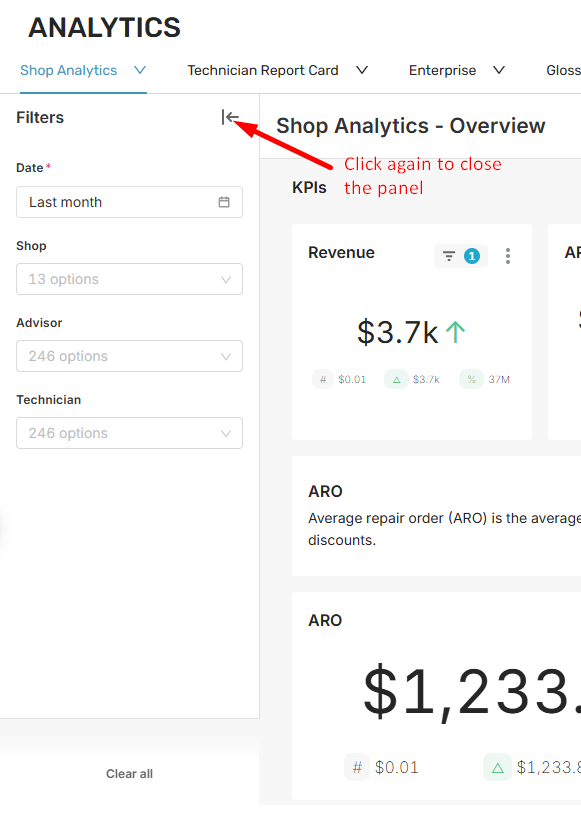
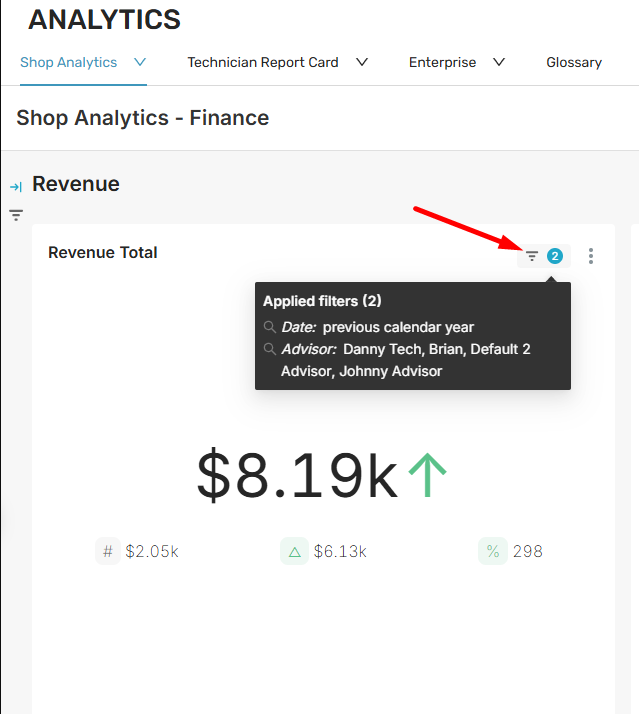
Within the individual data visualization tiles, you'll see the filter icon that has a number telling you how many filters are being applied to this tile. If you hover over the icon, you'll see exactly which filters are being applied.
If you need to reset filters, you can do so by re-opening the filters panel and choosing to clear filters at the bottom.
Using Graphs and Charts
Within Analytics there are different tables, such as line charts and pie graphs. Some have their own individual clickable filters (outside of the regular filter panel).
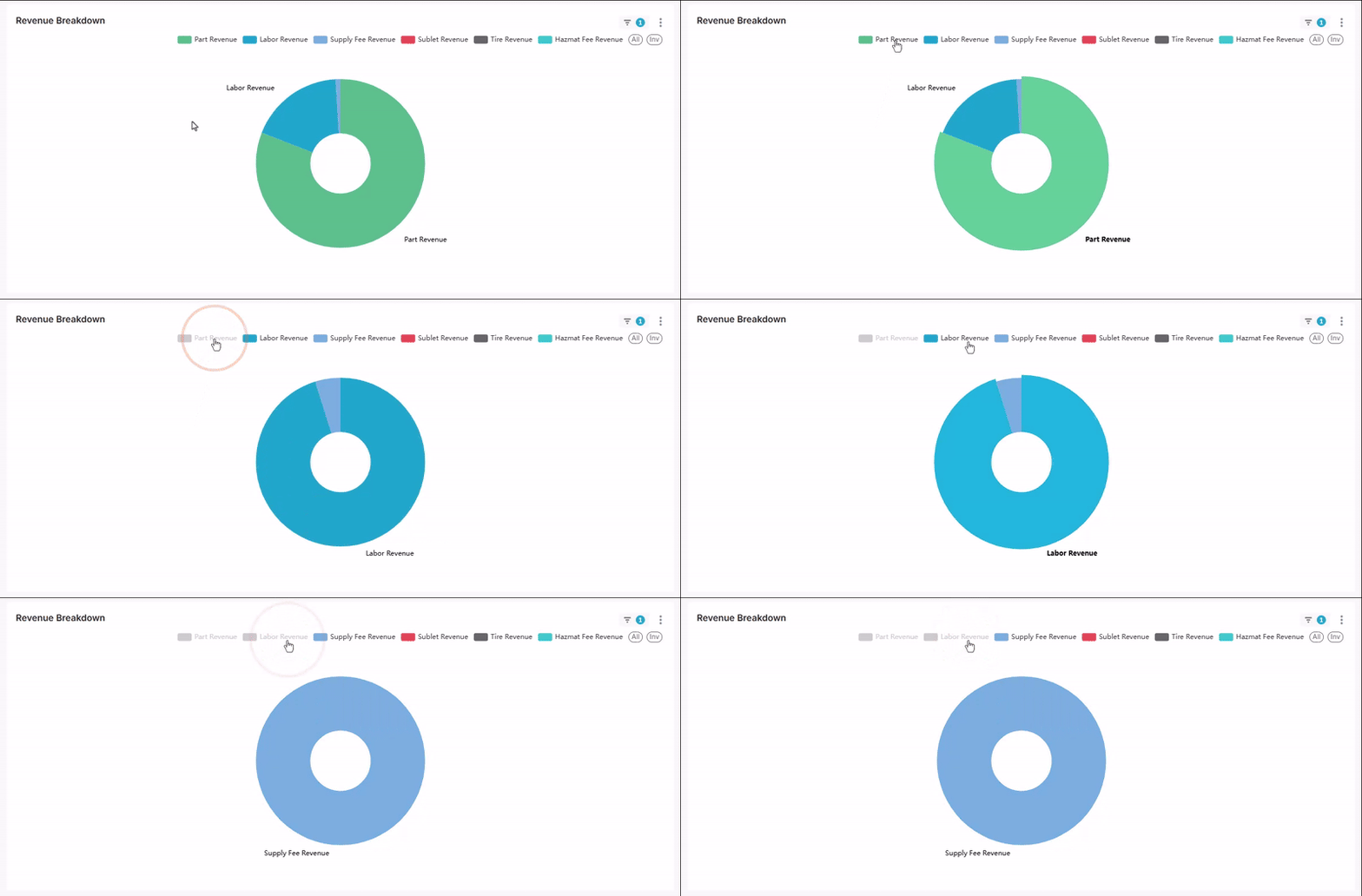
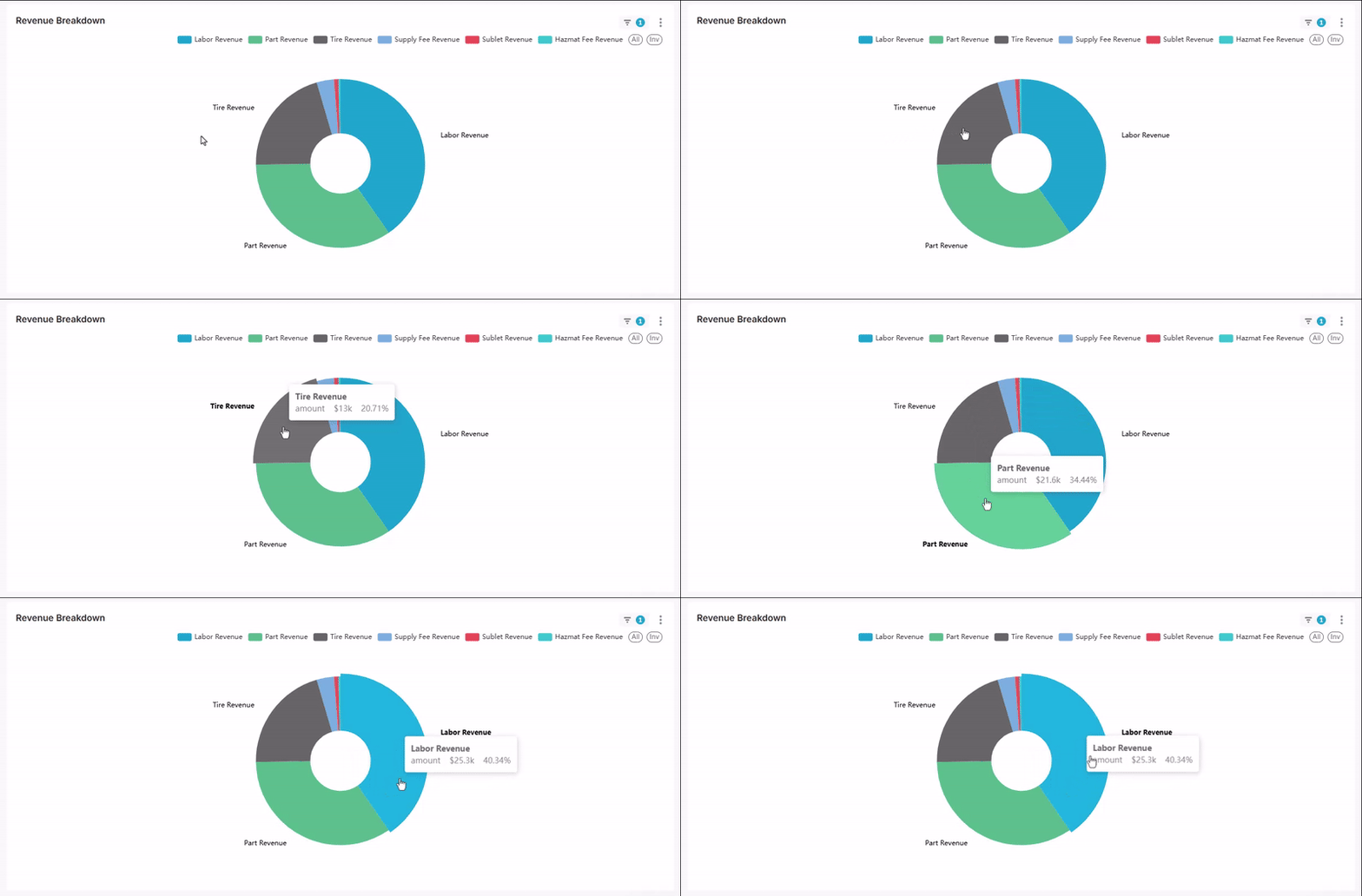
For example, under the Finance dashboard there is a Revenue Breakdown graph. Within this graph you'll see different sections that are labeled across the top. You can click on these labels to remove sections from your view. Say you don't want to see parts and labor revenue and you want to focus on the smaller details, you can deselect parts and labor in the graph and you'll see it update accordingly.
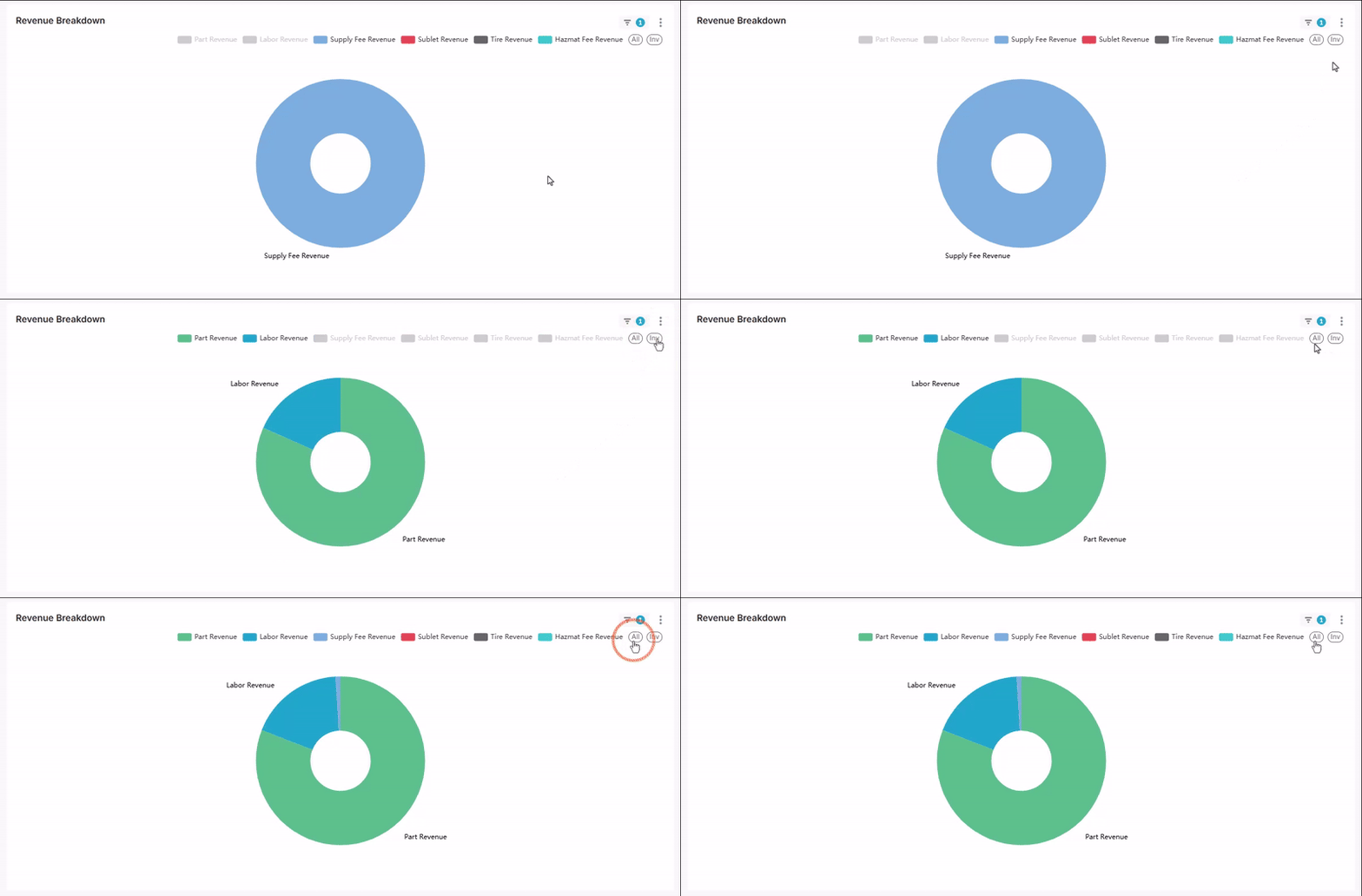
There's also two other buttons within the graph. You can click the Inv button to inverse the view, then click All to bring everything back in your view. So based on the same example above, if I click Inv, I'll only see parts and labor revenue, then if I click All, the full view comes back.
For any table, if you hover over the different sections of the graph or chart you'll see more insight about the data being shown.
Understanding KPIs
Outside of graphs and charts, there are also KPI (key performance indicator) visualization tiles. These are found within the Shop Analytics > Overview and Shop Analytics > Overview - Legacy dashboards. See them highlighted below.
Shop Analytics > Overview KPIs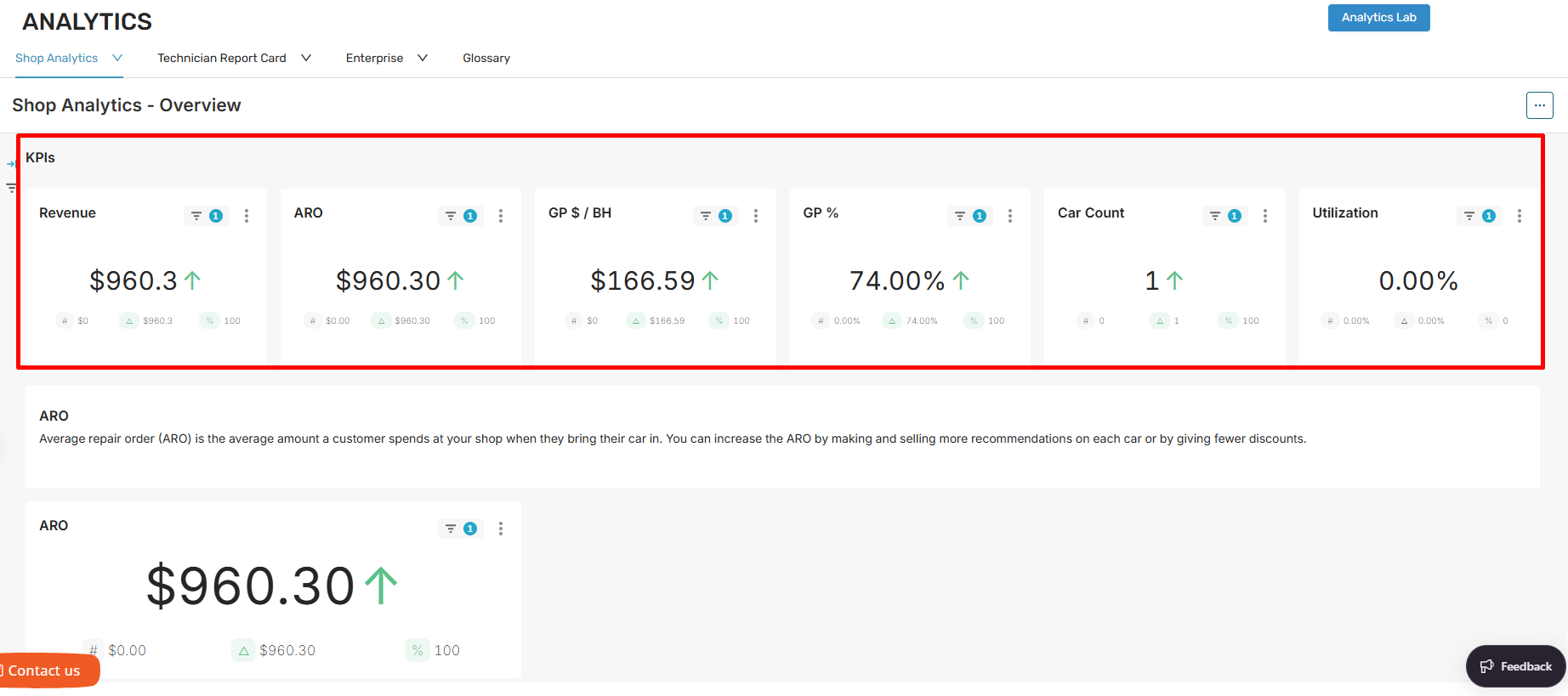
- Revenue
- ARO
- GP $ / BH
- GP %
- Car Count
- Utilization
Shop Analytics > Overview - Legacy KPIs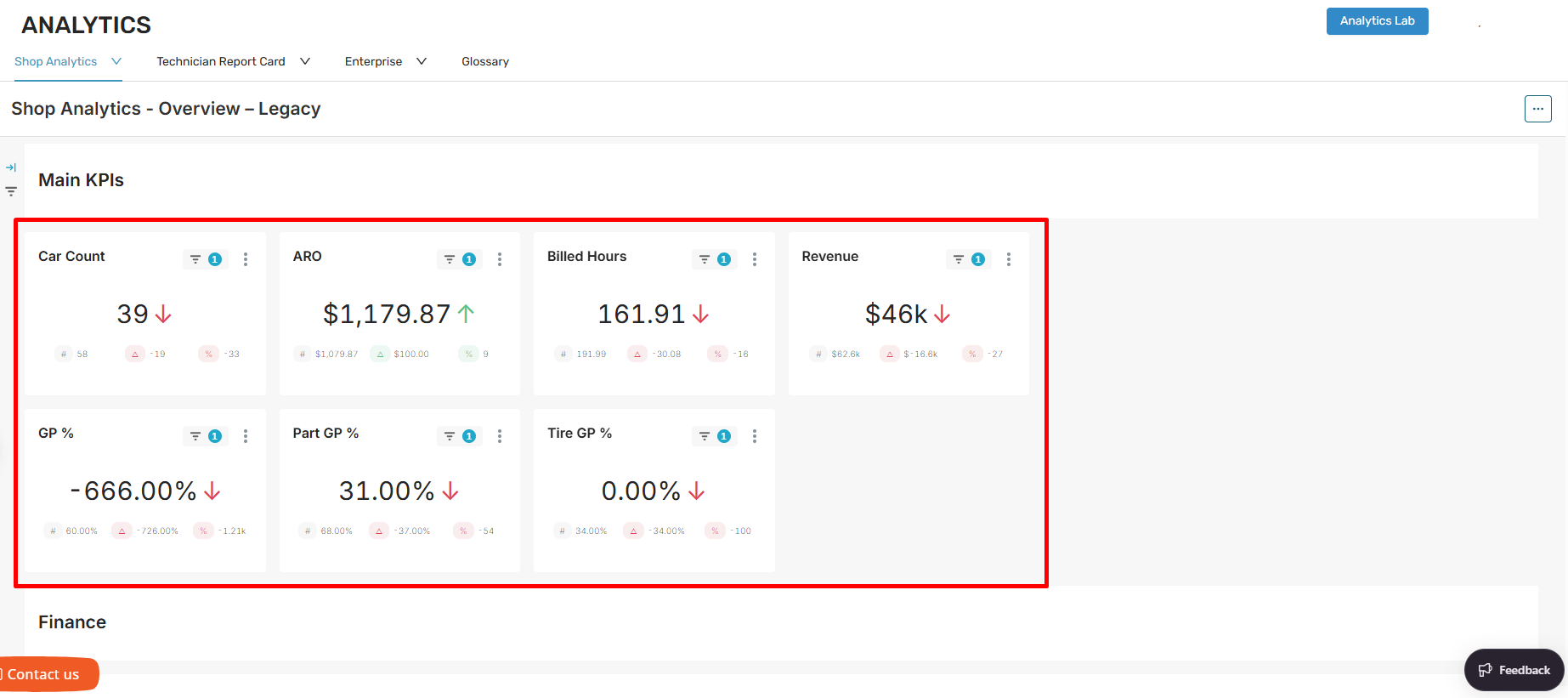
- Car Count
- ARO
- Billed Hours
- Revenue
- GP %
- Part GP %
- Tire GP %
The Overview dashboard KPIs are refreshed metrics tailored to today's shop priorities. However if you prefer the KPIs from Shop Manager's Classic Analytics, the Overview - Legacy dashboard KPIs will mimic the Classic Analytics KPI values.
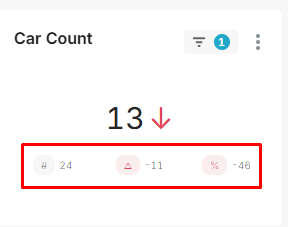
Within each of these KPI values you'll be able to see a quick comparison of data from the prior period. You'll see a green up arrow if the current period's value is more than the prior periods, or you'll see a red down arrow if the current period's value is less than the prior period. If there's no change, you will not see an arrow indicator.
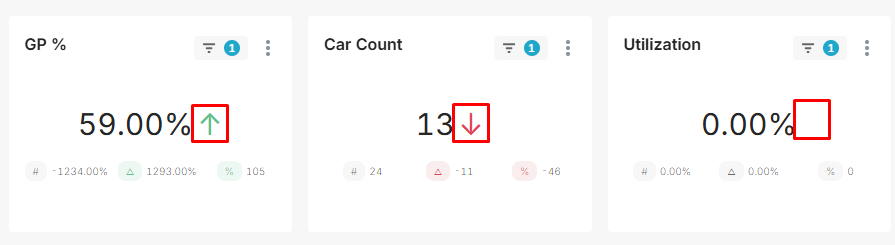
Also within the KPIs you'll see three symbols across the bottom offering more quick data comparison from the prior period. The hashtag icon shows you the prior period's value, the delta icon shows you the difference between the two time periods, and the percent icon is the percentage change between the two time periods. You'll see these color coded as well with green meaning more, red meaning less, and grey is no change.
Downloading and Exporting
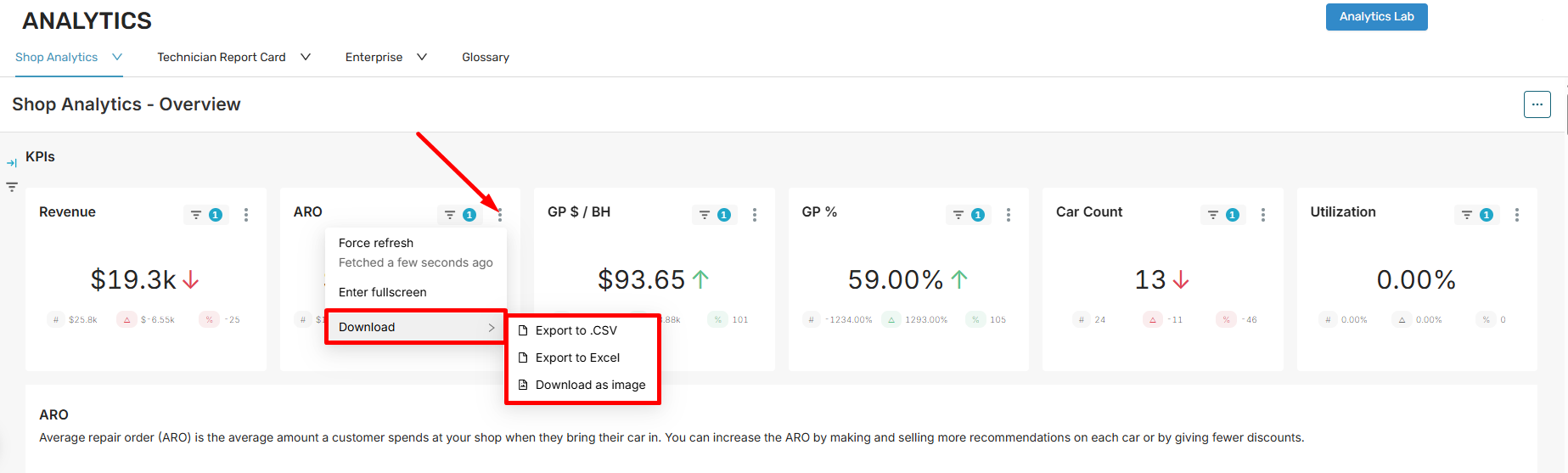
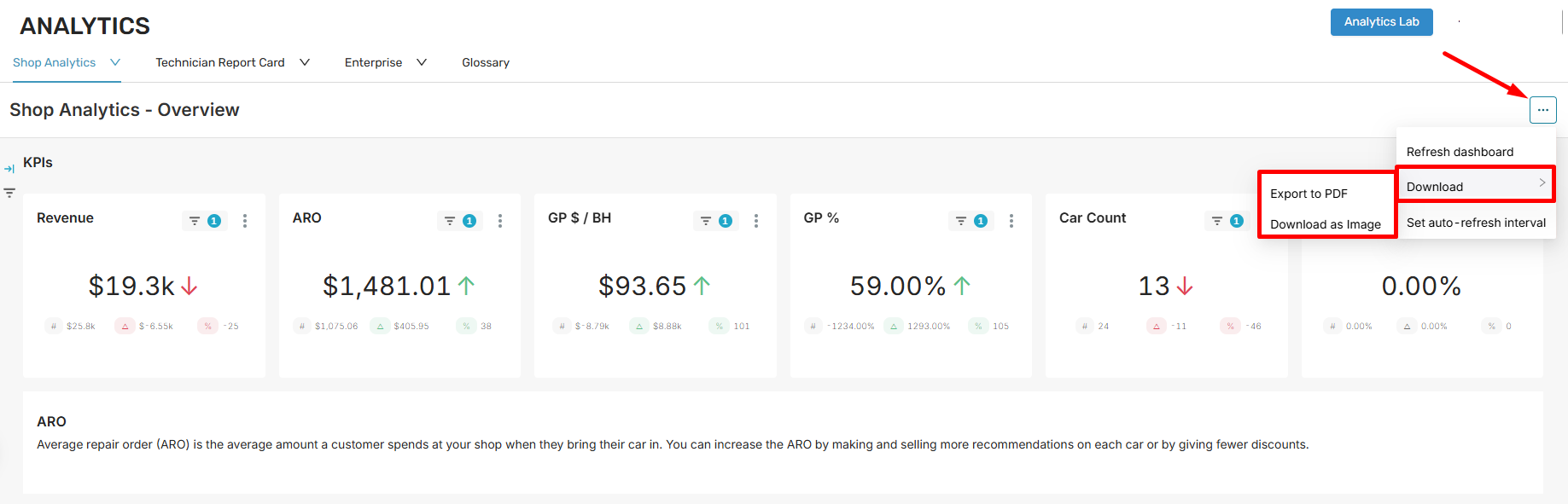
Entire dashboards and data visualization tiles can be exported. There's a three dot icon in the upper right of each dashboard page and there's a three dot icon within each data visualization tile. Clicking on these icons will open up some options and one of those options are to Download.
Exporting Entire Dashboards
Exporting Individual Data Visualization Tiles